TABLE OF CONTENTS
How to Make a Cartography Table in Minecraft (Ultimate Guide)
If you've ever tried to navigate a massive Minecraft world without a proper map system, you already know the pain — disorientation, wasted paper, and maps that don't scale properly. The cartography table solves all of that, and most players either don't know it exists or massively underuse it. This guide goes beyond the basic crafting recipe to show you exactly how to get the most out of this block, what mistakes to avoid, and why it should be a permanent fixture in every serious base.
What Is a Cartography Table (and Why You Actually Need It)
The block most players overlook until they've already wasted dozens of maps.
The cartography table is a utility block that lets you manipulate maps in ways you simply cannot do at a regular crafting table. You can expand map zoom levels, clone maps, lock maps permanently, and add paper to blank maps — all without wasting materials through trial and error at your inventory grid.
Here's the core reason this matters: in vanilla Minecraft, maps are expensive to scale up. Each zoom level requires eight more pieces of paper wrapped around the existing map at a crafting table. Do that wrong — or duplicate before locking — and you're throwing away resources. The cartography table streamlines every one of these operations into a clean two-slot interface that gives you a live preview before you commit.
What the cartography table does:
- Expands a filled map to a larger zoom level (uses 1 paper per level)
- Clones a map (uses 1 empty map)
- Locks a map so it stops updating (uses 1 glass pane)
- Converts an empty map into a locator map (Bedrock only)
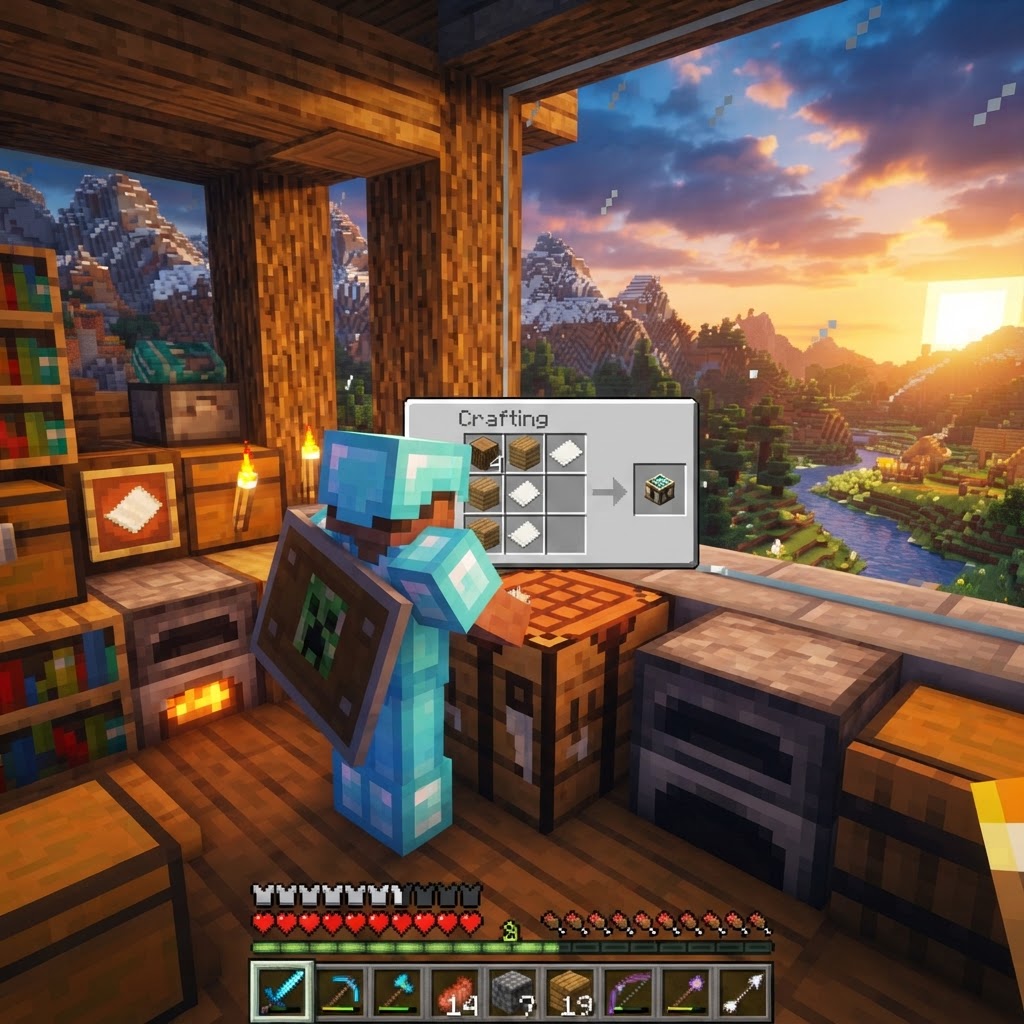
- Row 1: Paper | Paper | (empty)
- Row 2: Any Wood Plank | Any Wood Plank | (empty)
- Row 3: Any Wood Plank | Any Wood Plank | (empty)
- 2 Paper — crafted from 3 sugar cane in a horizontal row
- 4 Wood Planks — any type works (oak, spruce, birch, jungle, acacia, dark oak, mangrove, cherry, bamboo, crimson, warped)
- Fully explore and fill a map
- Expand it to your desired zoom level
- Clone it first (make as many copies as you have players)
- Lock each copy individually
- Distribute locked copies to each player
How to Craft a Cartography Table
Two planks, four planks — done in under a minute.
The recipe is simple, but there's nuance in the material choices that beginners miss.
Crafting Recipe (Shapeless-ish, but use this layout):
Place the following in a 3x3 crafting grid:
That's 2 paper in the top-left and top-middle slots, and 4 wood planks filling the left and middle columns in rows 2 and 3.
Materials you need:
Comparison Table: Getting Your Materials
| Material | Source | Fastest Method | Notes |
|---|---|---|---|
| Paper | Sugar Cane | Farm near water | 3 cane = 3 paper |
| Wood Planks | Any Log/Wood | First tree you find | Mix types freely |
| Sugar Cane | Riverbanks, deserts | Bone meal on sand | Grows fast with irrigation |
All Cartography Table Functions Explained
Understanding all four operations turns a novelty block into a core tool.
Most guides stop at "how to craft it." Here's what you actually do with it once it's placed.
1. Expanding a Map (Zoom Out)
Place your filled map in the left slot and a single piece of paper in the right slot. The output slot shows a zoomed-out version. Each expansion increases the map's coverage area by 4x but reduces detail. You can expand a map up to 4 times (Level 0 through Level 4).
Zoom Level Coverage (at default scale):
2. Cloning a Map
| Zoom Level | Blocks Covered | Best Use Case |
|---|---|---|
| Level 0 (default) | 128 x 128 | Base detail, small builds |
| Level 1 | 256 x 256 | Local area mapping |
| Level 2 | 512 x 512 | Biome navigation |
| Level 3 | 1024 x 1024 | Long-distance travel |
| Level 4 | 2048 x 2048 | Full region overview |
Place a filled map in the left slot and a blank (empty) map in the right slot. You get two identical copies. This is essential for multiplayer — every player can carry the same map without each person having to make their own.
3. Locking a Map
Place a filled map in the left slot and a glass pane in the right slot. The map becomes permanently frozen — it will never update again no matter where you carry it. Use this when you want to preserve a historical snapshot of an area, or when you've finished mapping a region and don't want accidental updates.
4. Starting a New Locator Map (Bedrock Only)
On Bedrock Edition, you can place an empty map in the left slot and paper in the right to create a locator map that shows player position markers from the start. Java Edition handles this differently — maps show player positions by default unless you craft an "empty map" without a compass.
Common Mistakes Players Make with Cartography Tables
These errors waste resources and time — know them before you hit them.
Mistake #1: Expanding a map before it's fully filled
Zooming out a half-explored map just gives you a larger, emptier map. Fill it completely first, then expand.
Mistake #2: Cloning instead of locking before distribution
If you clone a map and hand copies to multiple players, every copy continues updating as players explore. That's great for collaboration but terrible if you want a static reference. Lock first if you need frozen copies.
Mistake #3: Confusing "empty map" with "map"
An empty map (paper + compass) and a regular piece of paper are not the same in the cloning slot. Cloning requires an empty map as the second input. Using plain paper here gives you an expanded map, not a clone.
Mistake #4: Skipping straight to Level 4 zoom
Players assume bigger = better. But a Level 4 map shows such a wide area that individual features are nearly invisible. Start at Level 2 or 3 for general navigation; reserve Level 4 for server-wide overviews only.
Mistake #5: Not assigning a Cartographer villager
The cartography table doubles as a profession block. If you build one near a village without an existing Cartographer, you get free access to explorer maps at reasonable trade prices — including maps to Woodland Mansions and Ocean Monuments that would otherwise take hours to find manually.
Mistake #6: Placing the table and never using it
Seriously — a significant number of players craft this block, place it in their base as decor, and keep manually scaling maps at the crafting table. The cartography table uses one paper per zoom expansion versus eight at the crafting table. The savings are enormous over a long playthrough.
Pro Strategies for Serious Players
Once you know the basics, here's how to build real systems around the cartography table.
Build a Dedicated Map Room
Create a wall display using item frames. Lock your maps before framing them so they stay static. Organize by region: one wall for your base area at Level 1, one for your overworld at Level 3, one for your Nether routes. The cartography table lives in this room as a permanent workstation.
The Clone-Then-Lock Method for Multiplayer
Here's the optimal workflow for handing out maps in multiplayer:
This way everyone has an identical, permanent reference map. Anyone who explores beyond the map boundaries simply needs a new map for those adjacent regions.
Chain Multiple Tables for Efficiency
In large modded servers or high-traffic bases, place two or three cartography tables side by side and assign different functions to each — one for expanding, one for cloning, one locked for reference. Label them with signs. This sounds trivial but saves significant fumbling when you're mass-producing maps for trade or distribution.
Use Cartographer Villager Trades Strategically
Level up your Cartographer villager through early cheap trades (paper for emeralds, compass for emeralds) and unlock Journeyman and Expert tier trades. At Expert level, they sell Woodland Mansion explorer maps and Ocean Monument maps. These maps are some of the most valuable items in the game for progression — structures that would otherwise require hours of searching become instantly locatable.
Paper Farm + Cartography Table Combo
Sugar cane grows quickly with a simple zero-tick or observer-based farm design. Feed that paper directly into map production. A mature sugar cane farm producing 500+ paper per hour means you should never be resource-limited on mapping operations. Pair this with a villager who trades paper for emeralds and you have a sustainable emerald income stream alongside your cartography workflow.
Version Differences: Java vs. Bedrock vs. Legacy
Not every feature works the same across platforms — know your version.
| Feature | Java Edition | Bedrock Edition | Legacy (pre-1.14) |
|---|---|---|---|
| Cartography Table exists | Yes (1.14+) | Yes (1.11+) | No |
| Map expansion | 1 paper per level | 1 paper per level | 8 paper per level (crafting) |
| Locator maps | Default behavior | Requires compass | N/A |
| Villager job site | Yes | Yes | No |
| Map locking | Glass pane | Glass pane | Not available |
| Cloning | Empty map | Empty map | Crafting table method |
|---|
The Bottom Line
The cartography table is one of those blocks that separates players who are efficient from players who are perpetually lost and paper-poor. Craft it early — you only need 2 paper and 4 planks — and make it a permanent part of your base setup. Use it to expand maps strategically rather than immediately jumping to max zoom, lock maps before displaying them in item frames, and absolutely do not skip the Cartographer villager interaction if you want explorer maps without weeks of searching.
The core takeaways: one paper per zoom level saves enormous resources over the long run, cloning before locking is the right multiplayer workflow, and locking a map is permanent so time it correctly. Build the table, understand all four functions, and your navigation game becomes significantly stronger from the first hour onward.
RELATED ARTICLES
How to Make a Book in Minecraft: Easy Recipe & Uses
You're probably here because you just hit a wall — enchanting, writing, or crafting something advanced — and realized you need books but aren't sure how to get them efficiently. Books are one of Minec...
How to Make a Blast Furnace in Minecraft: Recipe & Uses
If you've been manually smelting ores one by one in a regular furnace, you're wasting serious time — the Minecraft blast furnace doubles your smelting speed for metals and ores, making it one of the m...
How to Make a Smoker in Minecraft: Recipe & Uses
If you're tired of waiting forever for your food to cook in a standard furnace, the smoker is the upgrade you didn't know you needed. It cooks food items at exactly twice the speed of a regular furnac...
STAY UPDATED
New blog posts, guides, and community tips delivered to your inbox.
No spam. Unsubscribe anytime.
Comments (0)
No comments yet. Be the first to share your thoughts!

