TABLE OF CONTENTS
Trending Minecraft Skins: How to Find, Download & Use Them
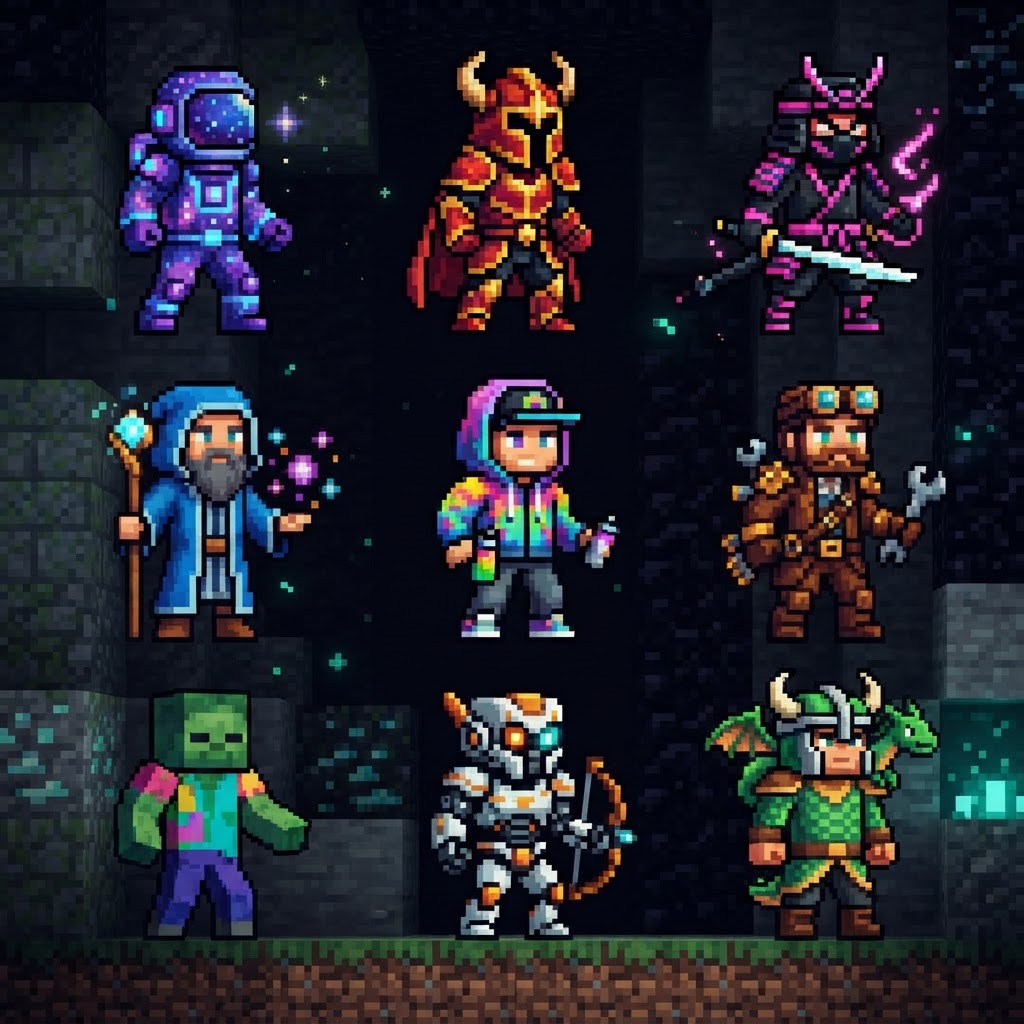
Trending Minecraft skins change faster than you'd think — what's dominating servers this week might be yesterday's news by next month. This guide covers exactly where to find trending Minecraft skins right now, how to download them safely, and how to apply them across Java and Bedrock editions without wasting time on broken links or sketchy sites.
Where to Find Trending Minecraft Skins in 2024
The go-to sources that actually stay current — not skin graveyards from 2018.
The biggest mistake players make is bookmarking one site and assuming it stays fresh. Trending skins cycle fast, especially after major pop culture drops, Minecraft updates, or viral moments on TikTok and YouTube. Here's where to actually look:
- NameMC.com — Tracks real-time skin usage across Java servers. The "Popular Skins" tab shows what players are genuinely wearing right now, not algorithmically inflated picks.
- PMCSkin3D (Planet Minecraft) — Community-uploaded with a trending filter. Strong for aesthetic skins like cottagecore, Y2K, and anime styles.
- Skindex (minecraftskins.com) — One of the oldest databases, but their "Hot" tab updates daily and pulls legitimate trending data.
- The Minecraft Marketplace — For Bedrock players, this is the official source. Expect paid packs but consistent quality and safety.
- Reddit (r/MinecraftSkins) — Raw community posts, great for spotting trends before they hit the big databases. Sort by "Hot" or "Top/This Week."
- Find your skin on NameMC or Planet Minecraft and click Download — you'll get a `.png` file (64x64 pixels).
- Go to minecraft.net/profile/skin and log in with your Microsoft account.
- Click Browse and select your downloaded `.png` file.
- Choose your model type: Classic (square arms) or Slim (Alex-style thin arms). Most modern trending skins specify which model they're built for — check the upload page.
- Click Save — your skin updates across all Java servers within a few minutes.
- Download the skin `.png` from Planet Minecraft or convert using Tynker or Skinseed (both free apps).
- Open Minecraft Bedrock → Settings → Profile.
- Tap Edit Character → Owned tab → Import.
- Select your `.png` file and assign it to a character slot.
- Confirm and return to the main menu — skin is live immediately.
- MCSkin3D (desktop, free) — Full 3D preview while you paint. Best for detailed edits.
- Skinseed (iOS/Android, free) — Mobile-first, intuitive layer system, good for quick tweaks.
- Blockbench (desktop/browser, free) — Overkill for basic edits but unmatched for precision work on overlay layers.
- PMCSkin3D (browser-based) — No install needed, directly integrated into Planet Minecraft.
- Swap hair color while keeping the outfit intact
- Edit the overlay layer (the "outer" layer) to add accessories like glasses, scars, or tattoos without redrawing the base
- Change eye style — swapping default eyes for custom pixel art eyes is one of the fastest ways to personalize a downloaded skin
- Recolor clothing to match your server's faction or team color
- Sites demanding you complete a survey or "verify you're human" before downloading a `.png` file
- Pages with download buttons that redirect to `.exe` or `.zip` files — skin files are always `.png`, nothing else
- Sites with no upload dates or community engagement (comments, likes, download counts)
- Social media DMs offering "exclusive trending skins" — these are phishing attempts
- Download the `.png` to a folder you can inspect.
- Right-click → Properties — confirm the file type is genuinely `.png` and the file size is between 1KB–5KB (skin files are tiny).
- Open it in any image viewer before importing — you should see a flat character layout, not a blank or corrupted image.
- If anything feels off, run the file through VirusTotal.com (free, no install needed).
Best Skin Sites for Trending Minecraft Skins: Head-to-Head Comparison
Not all platforms are equal — here's what separates the good ones from the time-wasters.
| Platform | Java Support | Bedrock Support | Free Skins | Trending Filter | Safe Download |
| NameMC | ✅ | ❌ | ✅ | ✅ Real-time | ✅ |
| Planet Minecraft | ✅ | ✅ (manual convert) | ✅ | ✅ Weekly | ✅ |
| Skindex | ✅ | ✅ (manual convert) | ✅ | ✅ Daily | ✅ |
| Minecraft Marketplace | ❌ | ✅ | ❌ Paid | ✅ Curated | ✅ Official |
| The Skindex (mobile) | ✅ | ✅ | ✅ | ⚠️ Limited | ✅ |
| Random Google results | ⚠️ | ⚠️ | ⚠️ | ❌ | ❌ Risk |
The takeaway: Java players should default to NameMC for trend accuracy. Bedrock players should use the Marketplace for safety or Planet Minecraft for free options. Never trust a random `.com` that shows up in a Google ad slot.
How to Download & Install Trending Skins (Java & Bedrock)
Step-by-step installs for both editions — no launcher confusion, no guessing.
Java Edition (via Minecraft.net)
Bedrock Edition (Console, Mobile, Windows)
Customizing Trending Skins to Make Them Yours
Why copy exactly when you can iterate on what's popular and stand out.
Trending skins are a starting point, not a finish line. The most recognizable players on any server are wearing variants of popular styles — not carbon copies. Here's how to edit without starting from scratch:
Tools worth using:
Common customizations on trending skins:
Avoiding Fake, Malicious & Low-Quality Skin Sources
Trending skin searches attract bad actors — here's how to stay clean.
Searching "trending Minecraft skins download" in Google puts you one bad click away from malware, fake survey walls, or stolen art. The skin file itself (`.png`) can't execute code — but the sites hosting them absolutely can cause problems.
Red flags to avoid immediately:
How to verify a skin file is clean:
Conclusion: Stay Current Without Wasting Time
Trending Minecraft skins move fast, but your workflow doesn't have to be chaotic. Bookmark two or three reliable sources — NameMC for Java trend data, Planet Minecraft for variety, and the Marketplace for Bedrock safety — and check them weekly rather than chasing every spike. When you find a skin that's close to what you want, customize it instead of hunting for perfection. Tools like MCSkin3D and Blockbench make iterations fast once you know the overlay layer trick.
The goal isn't to wear exactly what everyone else is wearing. It's to stay visually current while building something that's recognizably yours. That's what actually gets noticed on a server.
RELATED ARTICLES
Minecraft Survival Iron Farm: Build a Compact, High-Yield Design
Building a reliable Minecraft iron farm is one of the highest-value infrastructure projects in any survival world. This guide covers the mechanics behind iron golem spawning, walks you through a compa...
How to Make a Barrel in Minecraft: Recipe & Uses
Running out of chest space is one of the most frustrating mid-game problems in Minecraft, and barrels are one of the best solutions most players overlook. Unlike chests, barrels work even when complet...
Top Minecraft Seeds for the Latest Version (2026)
Finding the best Minecraft seeds for 2026 means knowing exactly what to look for — and where to spawn. This guide covers the top-performing seeds for Java and Bedrock Edition 1.21.x, breaking down spa...
STAY UPDATED
New blog posts, guides, and community tips delivered to your inbox.
No spam. Unsubscribe anytime.
Comments (0)
No comments yet. Be the first to share your thoughts!

