TABLE OF CONTENTS
Minecraft Cartography Table Guide: Crafting, Uses & Tips
Most players discover the cartography table when they're drowning in overlapping maps, wasting paper on expansions they don't need, or realizing too late that their world map is a cluttered mess. This guide exists to fix that — giving you a complete understanding of how to craft a cartography table, what it actually does, and how to use it strategically so your map management never holds back your exploration again.
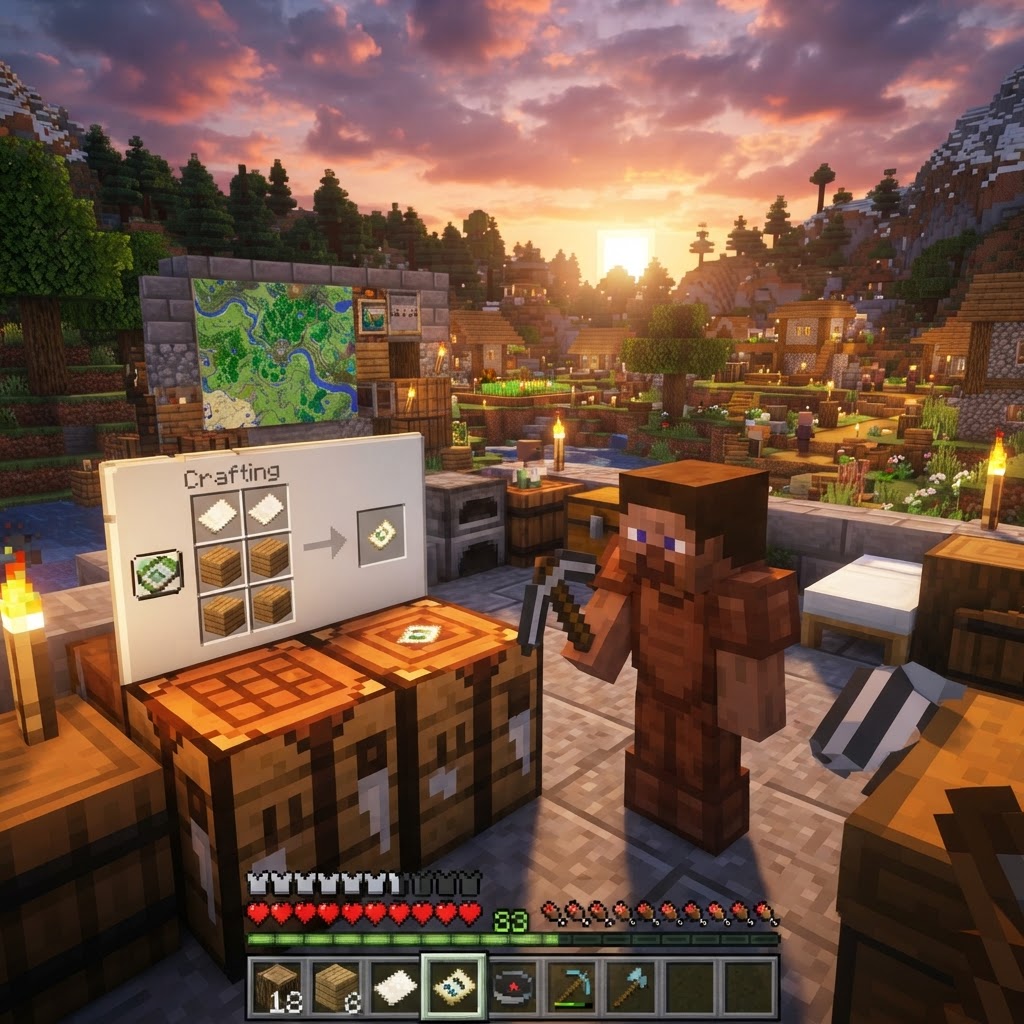
Crafting a Cartography Table in Minecraft
You only need four items — but knowing your options saves time.
The cartography table is one of the cheaper utility blocks in the game, which means there's no excuse not to have one early. Here's exactly what you need and how to put it together.
Required Materials:
- 2 Paper
- 4 Wood Planks (any type — oak, spruce, birch, jungle, acacia, dark oak, mangrove, cherry, bamboo, or crimson/warped)
Crafting Grid Layout:
- Open your crafting table (3×3 grid)
- Place 1 Paper in the top-left slot (Row 1, Column 1)
- Place 1 Paper in the top-middle slot (Row 1, Column 2)
- Fill the remaining six bottom slots (Rows 2 and 3, all three columns) with any Wood Planks
- Drag the cartography table into your inventory
That's it. Two paper and four planks. You can mix plank types freely — a spruce plank next to an oak plank works fine. The recipe doesn't care about wood color or type.
Finding One Without Crafting:
Cartography tables generate naturally inside cartographer houses in plains, savanna, and taiga villages. If you're near a village, you may already have access to one before crafting anything. Interacting with it in a village is free — but obviously you can't take it with you unless you mine it with any axe (or even by hand, though an axe is faster).
What a Cartography Table Actually Does
Four distinct functions that most players underuse.
Many players assume the cartography table is only for "making maps bigger." It's more capable than that. Here are all four things it can do:
1. Expand a Map (Scale Up)
Combine an existing map with Paper to increase its zoom level. Each expansion doubles the area covered. You can expand up to four times (zoom level 0 → 4).
2. Clone a Map
Combine a filled map with an Empty Map to produce two identical copies. Essential for multiplayer — share your explored map with teammates without losing your original.
3. Lock a Map
Combine a map with a Glass Pane to permanently freeze it. A locked map stops updating, meaning player and item frame positions won't shift it. Perfect for decorative wall maps.
4. Copy a Blank Map (Bedrock Edition Only)
On Bedrock, you can combine two empty maps to copy one — a minor utility feature not available in Java.
Step-by-Step: How To Use Each Function
Knowing the recipe isn't enough — sequence and timing matter.
Expanding a Map
- Place your existing map in the left input slot
- Place 1 Paper in the right input slot
- Take the expanded map from the output slot
- Repeat up to four times for maximum zoom
Each expansion uses exactly 1 paper per level. Going from zoom 0 to zoom 4 costs 4 paper total. The map must be held or placed first before expansion — you cannot expand a completely blank empty map.
Cloning a Map
- Place your filled map in the left input slot
- Place 1 Empty Map in the right input slot
- Collect both maps from the output — they are identical copies
- Place any filled map in the left input slot
- Place 1 Glass Pane in the right input slot
- Take the locked map — it now displays a banner icon and will never update again
Locking a Map
Locked maps are ideal for item frames. Without locking, a map in an item frame will show an arrow for any player standing in frame range, which can look cluttered on decorative displays.
Cartography Table vs. Crafting Table: Full Comparison
Knowing when to use each tool prevents wasted resources.
| Function | Cartography Table | Crafting Table |
|---|---|---|
| Expand Map | ✅ 1 Paper + Map | ✅ 8 Paper + Map (wastes 7 paper) |
| Clone Map | ✅ 1 Empty Map + Map | ✅ Works but identical recipe |
| Lock Map | ✅ Glass Pane + Map | ❌ Not possible |
| Dedicated UI | ✅ Clean 2-slot interface | ❌ Uses full 9-slot grid |
| Speed | ✅ Faster, fewer clicks | ❌ More navigation required |
| Early Availability | ❌ Requires crafting or village | ✅ Available from start |
|---|
The takeaway: The crafting table can technically expand and clone maps, but it costs 8 paper per expansion instead of 1. That's a massive waste. Always use the cartography table for map work once you have one.
Java Edition vs. Bedrock Edition Differences
Platform matters more than most guides admit.
FeatureJava EditionBedrock Edition| Expand Map | ✅ Yes | ✅ Yes |
|---|---|---|
| Clone Map | ✅ Yes | ✅ Yes |
| Lock Map | ✅ Yes | ✅ Yes |
| Copy Blank Map | ❌ No | ✅ Yes |
| Villager Profession | Cartographer (unlocks trades) | Cartographer (unlocks trades) |
| Map Markers | Banners (named) | Banners (named) |
| Starting Map (World Creation) | Optional toggle | Default on some modes |
|---|
Common Mistakes Players Make
These errors cost resources and create frustration — avoid them all.
Mistake 1: Expanding Before Exploring
Players often expand their map immediately after crafting it, thinking bigger is better. A zoom level 4 map covers a massive area but shows almost no detail. Start at zoom 0, explore, then expand only when necessary.
Mistake 2: Using the Crafting Table to Expand Maps
As shown in the comparison table above, expanding at the crafting table wastes 7 paper per expansion. Over four expansions that's 28 wasted paper versus 4 at the cartography table. Build the cartography table first.
Mistake 3: Not Locking Decorative Maps
If you've built a beautiful wall map display and left the maps unlocked, player position markers will appear and shift every time someone walks through. Always lock wall maps.
Mistake 4: Cloning With Paper Instead of Empty Maps
The inputs look similar in concept but produce completely different results. Paper expands; an Empty Map (paper + compass) clones. Label your chests clearly and keep Empty Maps stored separately.
Mistake 5: Mining It Without a Plan
Breaking a cartography table without Silk Touch doesn't destroy it — it drops as a block like any other — but players who grab it from a village often forget to replant it near their base, then find themselves trekking back to the village every time they need to clone or lock a map.
Mistake 6: Ignoring the Cartographer Villager Trade
The cartography table assigns the Cartographer profession to villagers. Cartographers sell Ocean Explorer Maps and Woodland Mansion Maps — two of the most time-saving items in the game for locating structures. Not using this trade is leaving massive value on the table.
Pro Strategies for Advanced Players
Beyond the basics — how experienced players squeeze maximum value from this block.
Strategy 1: The Master Map Room
Build a dedicated map room with a 5×5 or larger grid of item frames. Craft separate maps for each biome region, lock all of them, and mount them in adjacent frames. Use banners to mark key locations (strongholds, villages, base) before locking. This creates a permanent, permanent reference that never shifts.
Strategy 2: Zoom Level Discipline
Don't treat all maps at the same zoom. Keep a zoom 0 or 1 map for your home region (high detail, see every structure) and a zoom 3 or 4 map for long-distance travel orientation. Carry both. The detail map tells you where exactly you are; the large map tells you which direction to move.
Strategy 3: Clone Before You Explore
Before heading into dangerous territory, clone your current progress map. Leave the clone in a chest at base. If you die and lose your map, you have a recovery copy. This is especially important before Nether or End expeditions.
Strategy 4: Exploit the Cartographer Villager for Explorer Maps
Set up a dedicated cartographer villager trading hall. Lock them at low prices by trading repeatedly until you hit maximum reputation. Woodland Mansion and Ocean Monument maps from cartographers save hours of random searching — and you can sell emeralds back via farming to keep the trade loop sustainable.
Strategy 5: Use Named Banners as Map Waypoints
Place a named banner at a location (a stronghold entrance, your base, a rare biome edge). That banner's name will appear on any map that covers that coordinate. Lock the map after marking all key points so those markers are preserved permanently without the banner needing to stay in the world.
Final Takeaways
The cartography table is a small investment with enormous strategic returns.
The cartography table costs almost nothing — two paper and four planks — but it fundamentally changes how you interact with your world map. It cuts expansion costs by 87% versus using a crafting table, unlocks map locking functionality that doesn't exist anywhere else, enables easy team map sharing through cloning, and passively assigns a high-value profession to nearby villagers.
Build one early. Use it every time you touch a map. Lock your decorative displays. Clone before dangerous expeditions. And don't overlook the Cartographer trades — explorer maps are some of the most powerful items in the game for anyone trying to locate structures efficiently.
If you've been treating the cartography table as optional, you've been managing maps the hard way. It's time to stop.
RELATED ARTICLES
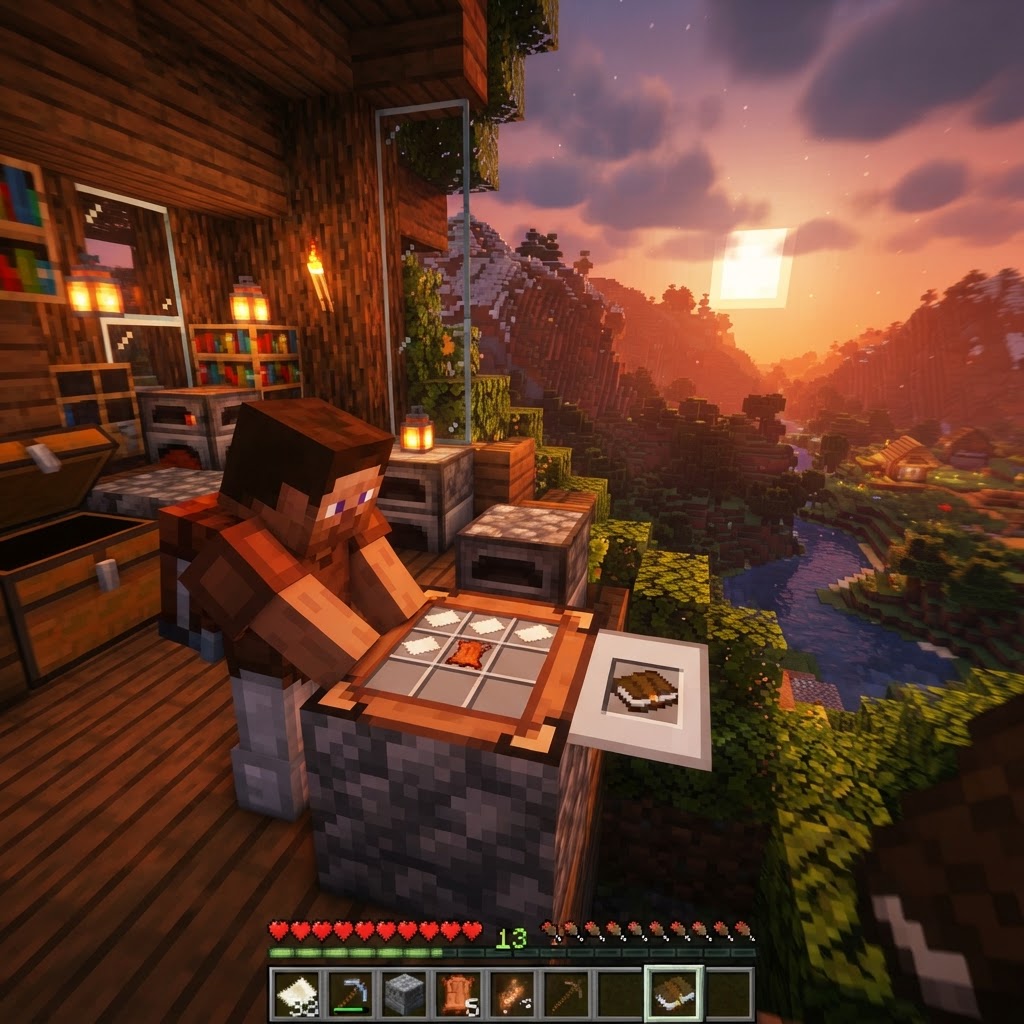
How to Make a Book in Minecraft: Easy Recipe & Uses
You're probably here because you just hit a wall — enchanting, writing, or crafting something advanced — and realized you need books but aren't sure how to get them efficiently. Books are one of Minec...
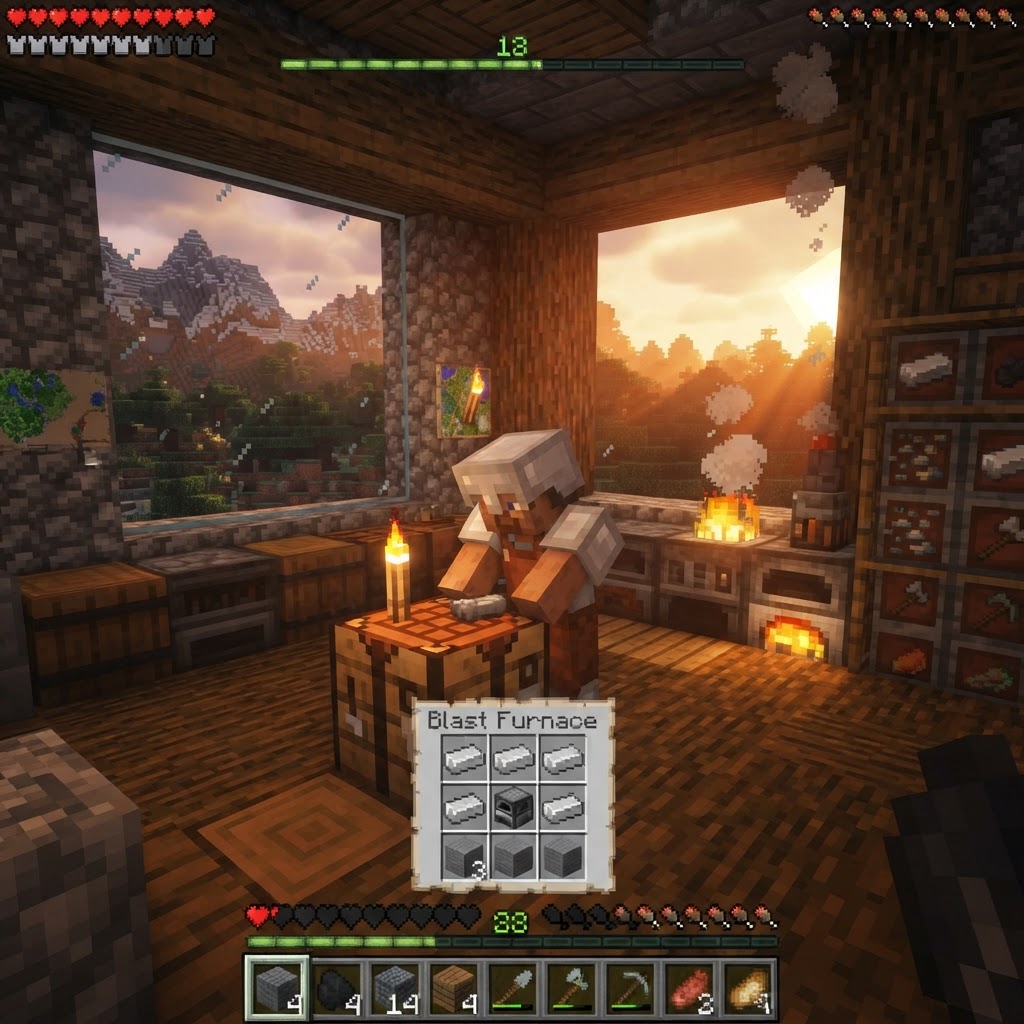
How to Make a Blast Furnace in Minecraft: Recipe & Uses
If you've been manually smelting ores one by one in a regular furnace, you're wasting serious time — the Minecraft blast furnace doubles your smelting speed for metals and ores, making it one of the m...
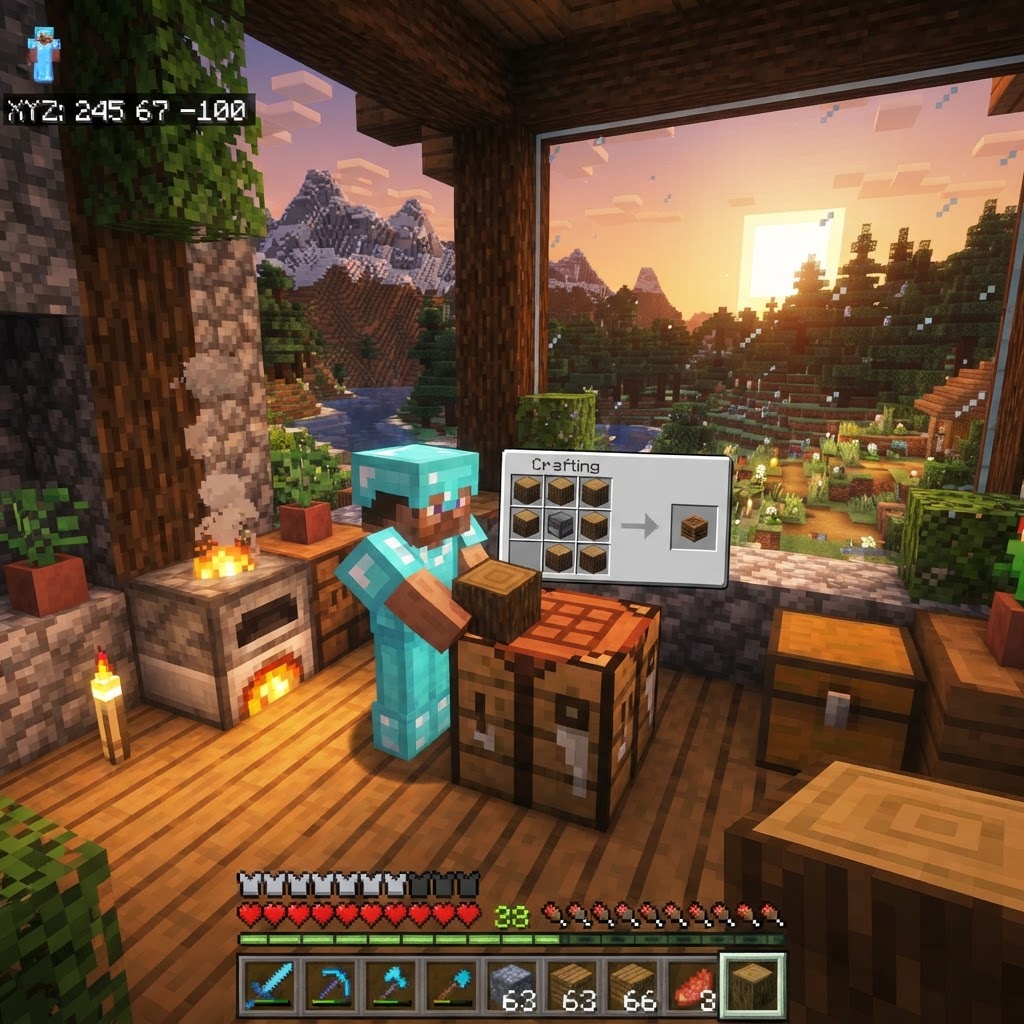
How to Make a Smoker in Minecraft: Recipe & Uses
If you're tired of waiting forever for your food to cook in a standard furnace, the smoker is the upgrade you didn't know you needed. It cooks food items at exactly twice the speed of a regular furnac...
STAY UPDATED
New blog posts, guides, and community tips delivered to your inbox.
No spam. Unsubscribe anytime.
Comments (0)
No comments yet. Be the first to share your thoughts!

